
Photo by Stephen Dawson on Unsplash
If you're a Power BI beginner, samples available in the Power BI tutorials by Microsoft are a great place to get started.
In this post, I go through the steps to view the sample data in excel, so that you can use the data for practice purposes.
I'll use the Human Resources sample as a starting point, as I'm using it for a practice project myself.
Download the Excel file
First, open the tutorial for Human Resources sample in your browser. This article contains very informative and detailed explanations on how to use the data to build a Power BI report.
Next, go to the Download excel samples page, which leads to the GitHub repository where the Excel file is shared.
Download the Excel file and open the file in your machine. An important thing to note is that to view the data you'll need the Power Pivot feature in Excel, which is only available in Excel for Windows. If you are using Mac OS, you may need to use a separate Windows machine, or a Windows Virtual machine with Excel installed.
Install Power Pivot
If you don't have Power Pivot tab in Excel, you can install it in a few simple steps.
- In Excel (for Windows), go to
Fileand thenOptions. - Select
Add-insfrom the left pane and selectCOM Add-insat the bottom. ClickGo.
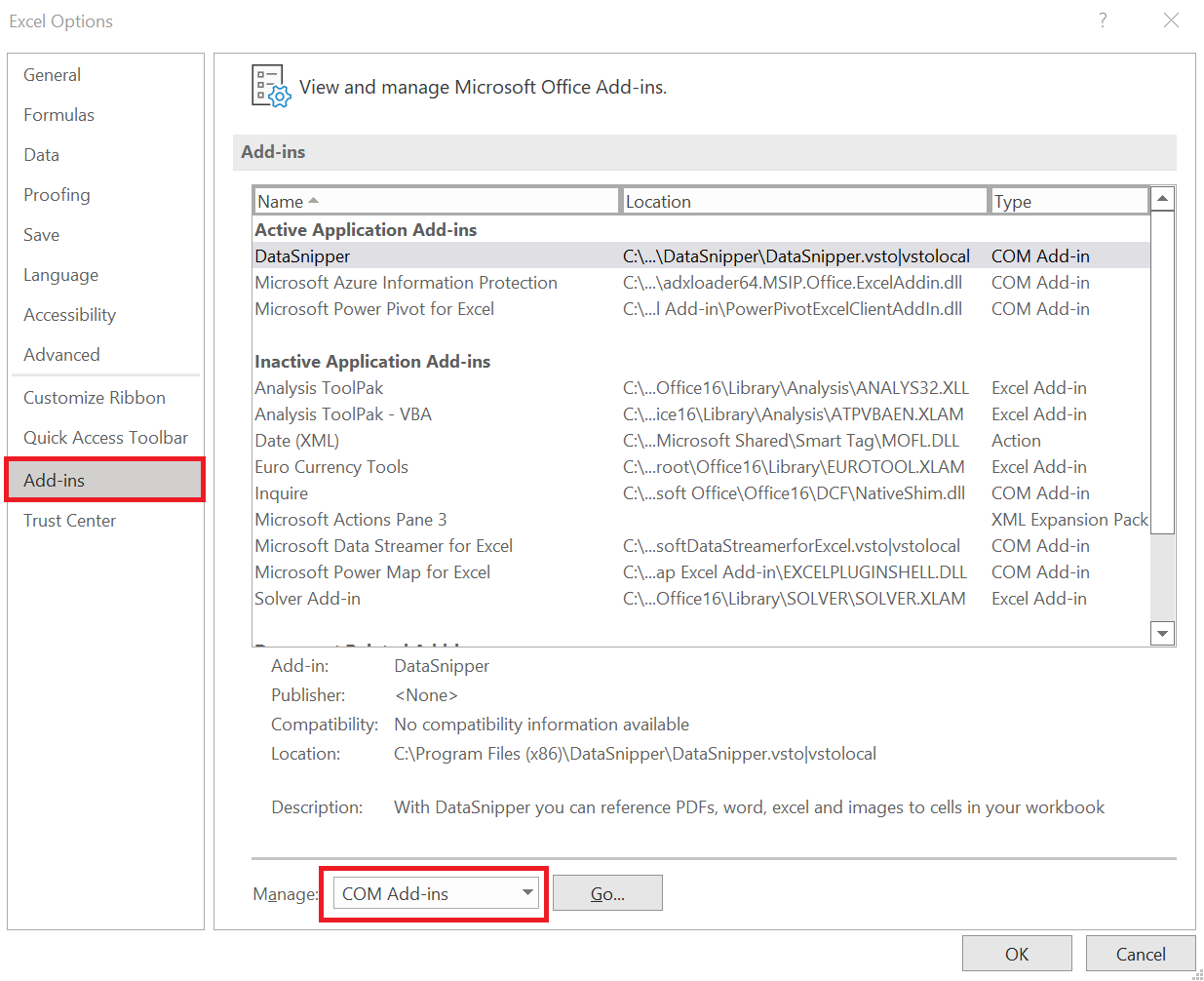
Install Add-ins in Microsoft Excel
- In the dialog box, tick the
Microsoft Power Pivot for Exceland clickOK. You'll be able to see thePower Pivottab added to the Excel ribbon on top.
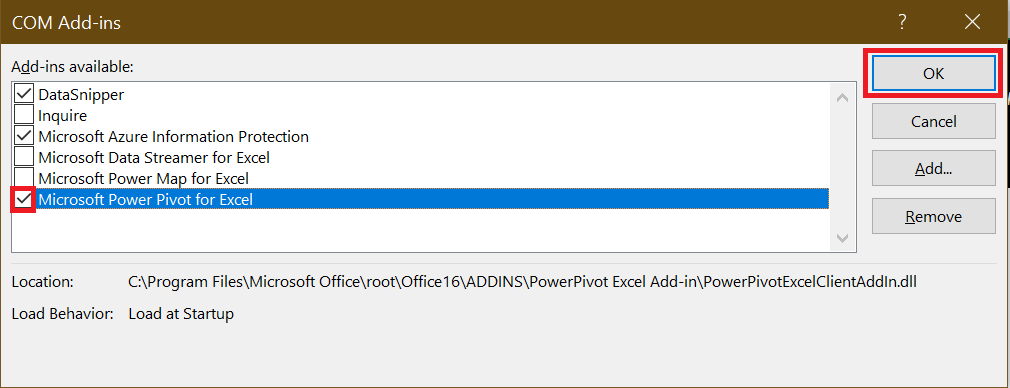
Add Power Pivot to Excel
View data
When you open the downloaded file, you'll see only a single Info tab.
Because the data is stored in the Power Query data model, you can view data using Power Pivot tab.
- Go to the
Power Pivottab and selectManage.

Power Pivot tab in Excel
- This will open a new window where you can view the data in the Power query model. Select the
Employeetab to view the complete HR dataset.
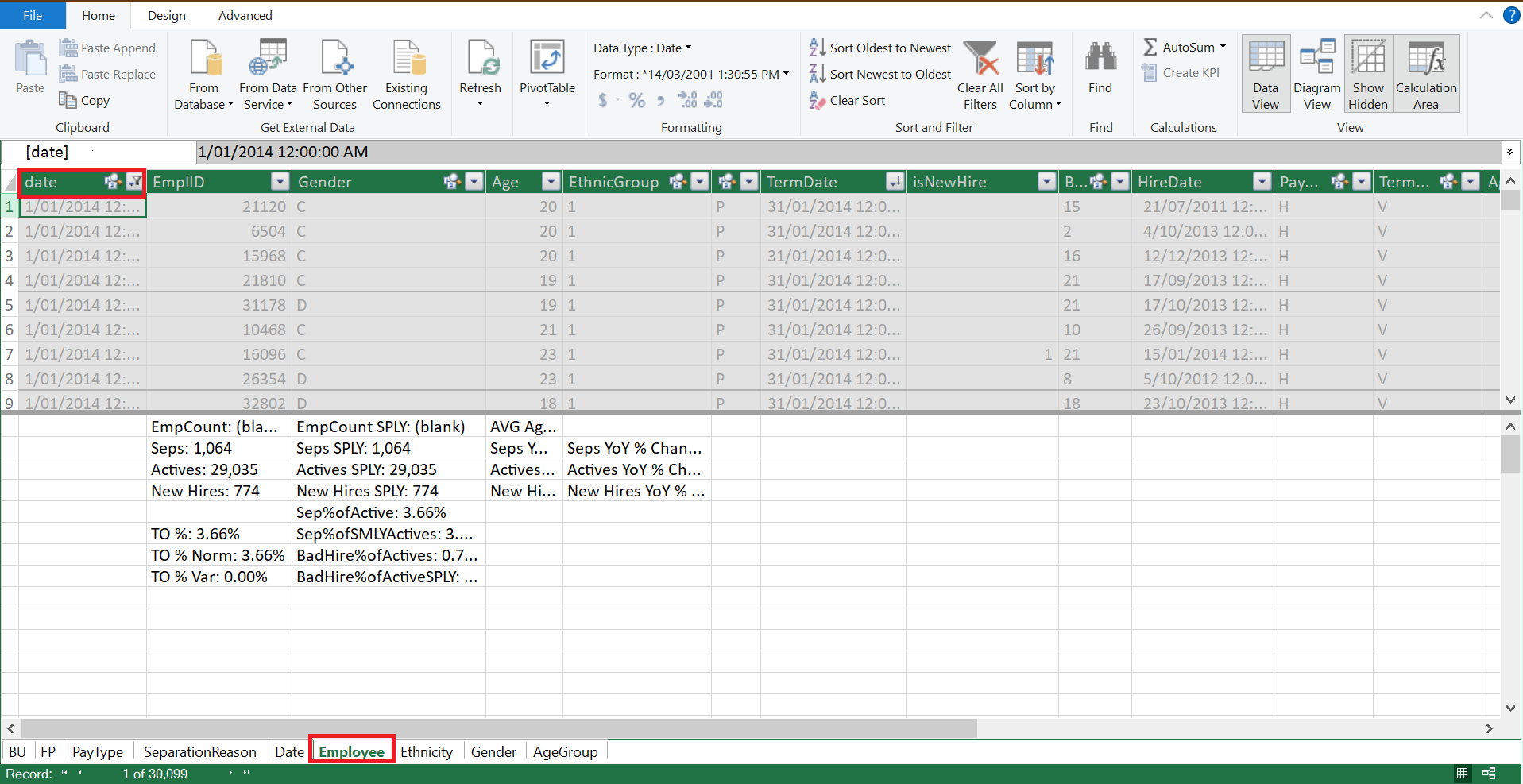
Data view in Power Query window
For my project, I'm extracting the monthly data for 2014 into different files. You can filter the data by the date column, copy the data and paste in a new file to use for your practice project.
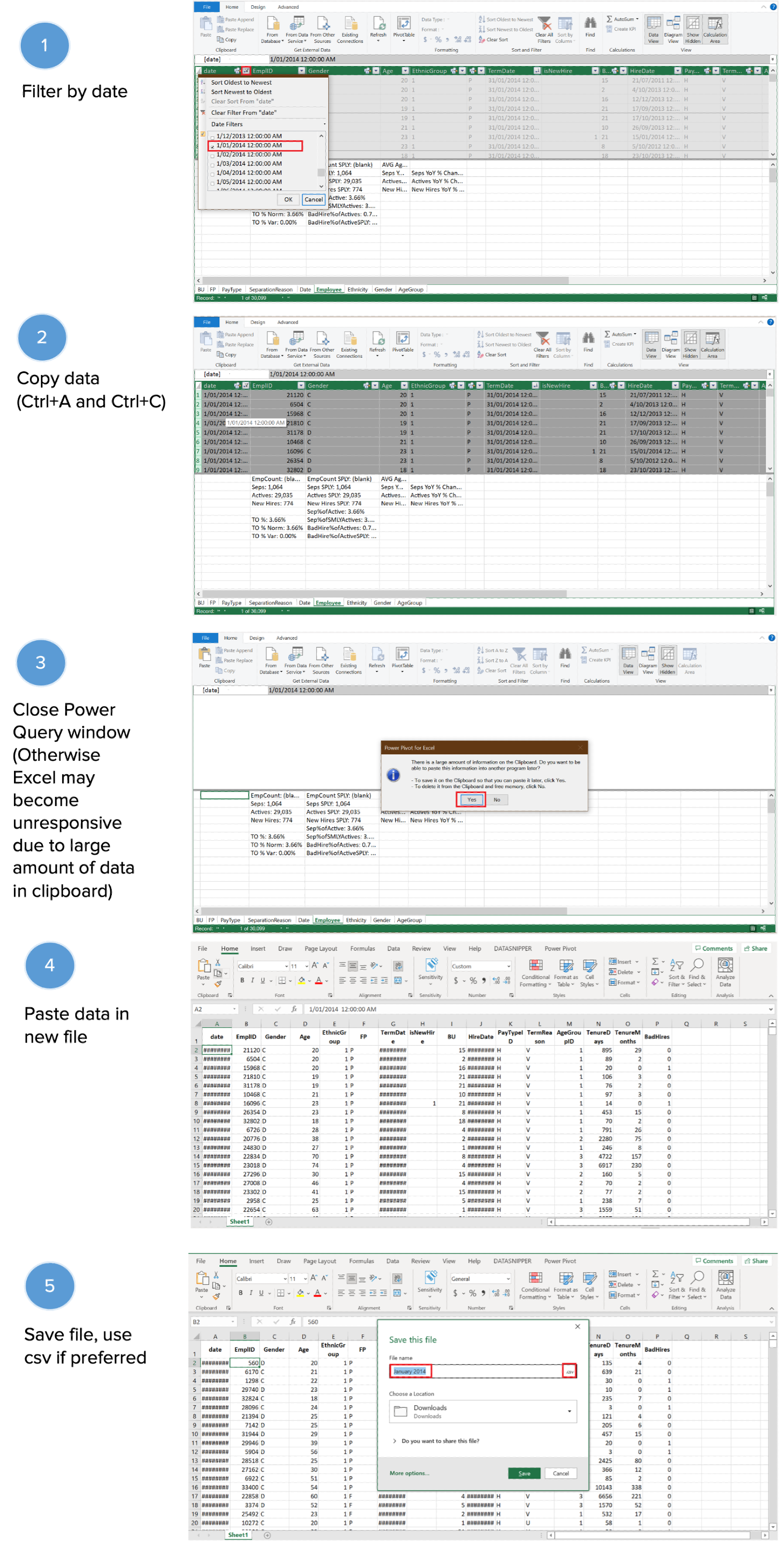
Extract data into a new file
Data usage
Note that the GitHub repository is shared with MIT license. It allows you to use the data files for a wide range of purposes.
Have fun reporting with Power BI!
Read more about how I generated my own Vacancy dataset to match the above Human resource dataset to use in Power BI.