Git is a powerful version control system that can be used to easily manage everything from small to large projects. However, newbies often find using Git a bit challenging. Here's the simple guide to using Git on Windows command line.

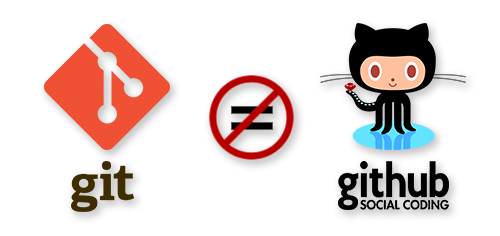
For those who wonder about the difference between Git and GitHub, GitHub is a Git repository hosting service that has features of Git as well as its own features. Git is a command line tool, whereas GitHub provides a web based graphical user interface (GUI) for using Git repositories.
This post assumes that you have Git set up in your computer as well as a GitHub account.
You can get a Git project using two approaches; either by creating a new repository or cloning an existing one (created by someone else) to your machine. The two ways are described below.
Creating a new repository
1. Create a Git repository
A repository is a special data structure Git uses to store the snapshots of the project you save. This is different from the project folder you have in your computer. Go to your Git account on GitHub and create a Git repository.
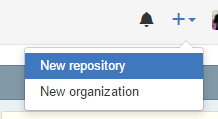
Add a repository name that is easy to remember. GitHub will direct you to the page of your newly created repository.
2. Initialize your Git repository in your computer.
Go to the folder you want to create your project. If you have a project already created, go in to the project folder. Shift+right click and select Open command window here option to get the command line.
Use git init command to initialize a git repository.

3. Add existing files to the repository.
Use git add --all to add all the files in the folder to the Git repository.
Then use git commit -m "Commit message" to record the changes made to the project. The commit message describes the
change you made to the project.

4. Link your project with the repository created in GitHub.
Execute git remote add <repository-name> <url> to add your project in your machine to the repository. Here,
repository-name is the name you want your remote repository to have. This can be the same as your GitHub repository
name, but does not necessarily have to be so.

You can get the url of the repository using GitHub.

5. Push the project to the repository.
Use git push <repository-name> master to push your project to the remote repository. The repository-name has to be
the same as the one specified earlier in step 4. This will prompt you to enter the username and password of the
GitHub account and record changes in the repository.

6. Checking status
Use git status command to check the status of the repository at any time to check if there are any changes to be
committed or pushed.

7. Finding the remote repository name
Use git remote show to get the remote repository name.

8. Recording changes made later
After making any changes to the project, the changes have to be committed and pushed to the repository to record the changes in Git. Follow steps 3 and 5 to push the repository again.
9. Updating changes from others in your machine
To get the changes made by others to the repository, run the command git pull <remote-name> <branch-name>. The
branch-name is 'master' by default, as we did not discuss branching in this post. Make sure you have committed and
pushed your changes before pulling the updates.

It is in this step where conflicts can occur. If you run into any conflicts, those will have to be resolved manually.
Cloning an existing repository to your computer
Go to the directory in your computer and open a command window using Shift+Right click. Use git clone <url to the
repository> to get the existing repository to your computer. The repository will be cloned in your computer creating
a new folder.

Committing and pushing changes to the repository is the same as in above steps. Make sure that you are inside the project folder when executing the commands.
Happy coding with Git!