A cluster is a group of nodes each running an instance of a product. This cluster of nodes act as a single instance, dividing up the work among the nodes, improving performance and reliability.
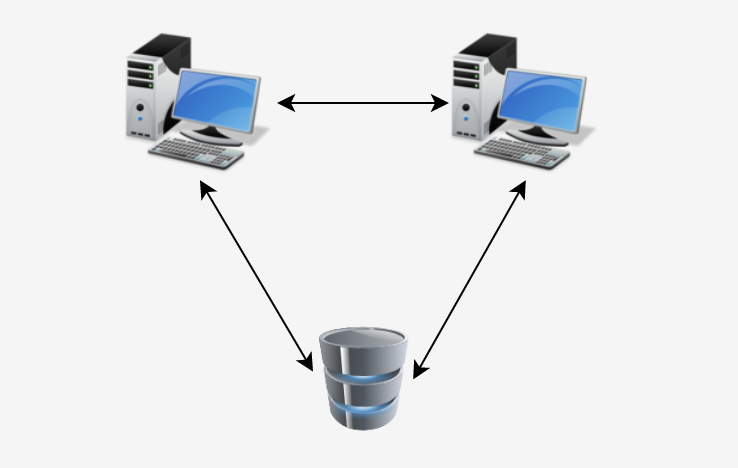
In this post, let us setup a cluster of two nodes running WSO2 Message Broker 3.0.0 and run clustering tests on them. These steps can be used to set up a cluster of MB 3.2.0 as well.
You can get the WSO2 Message Broker installer from here. However, to run the tests, you will need to checkout the GitHub repository. You will require at least two instances running MB to create a cluster with two nodes. You can use one of these MB nodes to run the test case suite.
Setting up the MB cluster
Following configurations need to be done in all nodes in the cluster.
1. Configuring broker.xml
Configure the <MB_HOME>/repository/conf/broker.xml file as described in steps 2 and 3 in WSO2 documentation here.
When modifying the thrift related configurations in each node, use the IP of the node as the thriftServerHost:
<coordination>
    <nodeID>default</nodeID>
    <thriftServerHost>x.x.x.x</thriftServerHost>
    <thriftServerPort>7611</thriftServerPort>
</coordination>
2. Creating the message store for the cluster
Create the MySql database to be used as the message store for MB. Although MB supports various database systems such as MySql, MSSQL, and Oracle, currently only MySql databases are supported for cluster testing.
- In one MB node or in a separate remote instance, setup a MySql server. Install MySql using the command below.
sudo apt install mysql-server- Create the database to be used as the message store for MB. The database could be named as
wso2_mb. - Add the database to the datasources in
<MB_HOME>/repository/conf/datasources/master-datasources.xmlfile as described in WSO2 documentation here. For this database to be used as the message store of MB, set the datasource name asWSO2_MB_STORE_DB, and remove or comment out the default H2 datasource in the same name in the config file. - In
broker.xml, add the message store and andes context store configs for the MySql database as shown [here](https://docs.wso2.com/display/CLUSTER44x/Configuring+MySQL in step 4. Comment out the similar configs forWSO2_MB_STORE_DB.
3. Setting up the cluster databases
Every WSO2 product uses a database to store information such as user management and registry data. In addition to this database, a cluster should have a central database for config and governance registry mounts. You can follow WSO2 documentation here and create the required databases. You can create these databases in the server or node in which you created the MySql database in the previous step.
4. Configuring registry.xml
Add the details of registry database created in the previous step in the <MB_HOME> /repository/conf/registry.xml
file as mentioned in the documentation.
5. Configure axis2.xml and qpid-config.xml files
Configure <MB_HOME>/repository/conf/axis2/axis2.xml and <MB_HOME> /repository/conf/advanced/qpi-config.xml files
as mentioned in the documentation.
6. Time sync all broker nodes
Use the following command to time sync the nodes.
$ sudo apt-get install ntpdate;
$ sudo ntpdate pool.ntp.org
Starting the cluster
Now the cluster is configured. Start each node using the following command in <MB_HOME>/bin.
To create the required tables in the MySql message store database which we created in step 2, run the starting
command with the flag -Dsetup.
./wso2server.sh start -DsetupAfter starting all nodes, observe the logs using the command tailf command as below, and verify that the
nodes are added to the cluster and are connected with each other.
tailf ../repository/logs/ wso2carbon.logRunning clustering tests
We can use one of the above nodes to run clustering tests. Configure the following in the node you wish to run the tests.
- Add the nodes of the cluster in
automation.xml.
<platform>
    <!--
        cluster instance details to be used to platform test execution.
        One node is to be a compression enabled node, and the other node is to be without compression.
    -->
    <productGroup name="MB_Cluster" clusteringEnabled="false" default="true">
        <instance name="mb002" type="standalone" nonBlockingTransportEnabled="false">
            <hosts>
                <host type="default">192.168.1.3</host>
            </hosts>
            <ports>
                <port type="http">9763</port>
                <port type="https">9443</port>
                <port type="amqp">5672</port>
                <port type="mqtt">1883</port>
            </ports>
            <properties>

            </properties>
        </instance>
        <instance name="mb003" type="standalone" nonBlockingTransportEnabled="false">
            <hosts>
                <host type="default">192.168.1.4</host>
            </hosts>
            <ports>
                <port type="http">9764</port>
                <port type="https">9444</port>
                <port type="amqp">5673</port>
                <port type="mqtt">1884</port>
            </ports>
            <properties>

            </properties>
        </instance>
    </productGroup>
</platform>- Add the MySql message store you created earlier to
automation.xml.
<datasources>
    <datasource name="mbCluster">
        <url>jdbc:mysql://localhost/WSO2_MB</url>
        <username>root</username>
        <password>root</password>
        <driverClassName>com.mysql.jdbc.Driver</driverClassName>
    </datasource>
</datasources>- Enable running tests by setting the value of
skipPlatformTestsinpom.xmltofalse.
<properties>
    <skipPlatformTests>true</skipPlatformTests>
</properties>- Now run the clustering tests by executing the command
mvn clean install.